
QC Player
A high-performance analysis and validation system built for the most demanding post-production quality control workflows. Runs on-prem or in the cloud, with built in reference quality streaming solution.
QC Player provides deep inspection across cinema, broadcast, and streaming formats. Multi-GPU acceleration and 32-bit floating-point processing deliver real-time or faster-than-real-time playback and analysis of the most complex material — including formats that would bring conventional players to a halt.

Format coverage is comprehensive: mezzanine files, flat or component-based deliverables, DCP and IMF with full structural and content validation. HDR support spans Dolby Vision, HDR10+, and all relevant formats for both home and cinema. Audio inspection includes full Dolby Atmos and immersive audio support. Colorfront works directly with studios and standards bodies to ensure support for new specifications often before they're formally adopted.
The analysis toolset is designed to surface problems before they become rejections. AI-assisted QC covers color compliance, framing, and format validation. Signal-level metrics include MaxFALL/MaxCLL visualization, PSNR, SSIM, VMAF, and DeltaICtCp. DCP and IMF packages go through advanced structural and content validation — beyond playback, down to the package level. QC issues are logged as timeline markers for fast review and sign-off. Complete QC sessions export as PDF reports containing the full metadata record.
For facilities running automated or hybrid pipelines, full API, CLI, and MCP integration is available.
Key capabilities include:
- Multi-GPU accelerated playback and analysis
- 32-bit floating-point image processing pipeline
- DCP and IMF advanced package inspection and validation
- Dolby Vision and HDR10+ metadata inspection and validation
- Dolby Atmos and immersive audio inspection
- Advanced HDR analysis including MaxFALL/MaxCLL visualization
- Color compliance, framing, and format validation
- Compare versions and add timeline markers where difference is detected
- QC issue logging as timeline markers
- PDF report export with full QC metadata
- Timed text format support
Advanced Framing Detection
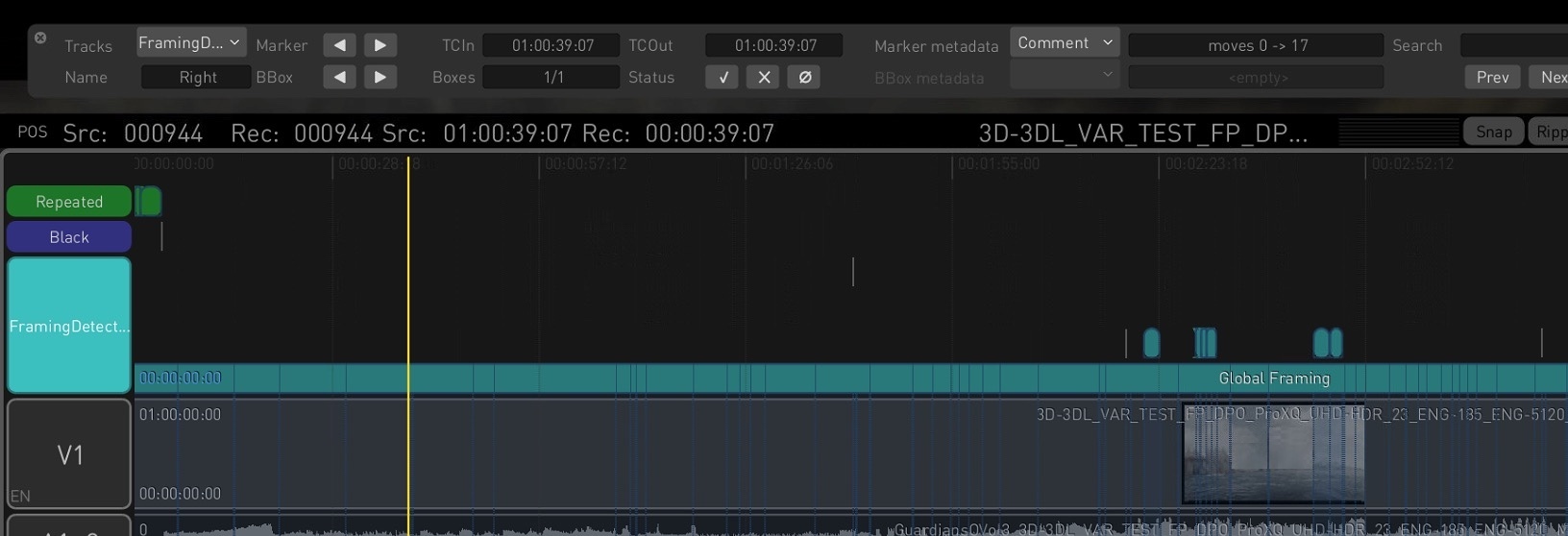
Frame error detection has been enhanced to provide more comprehensive visual QC through the Analyze Content menu. In addition to spotting inconsistent mattes that create black borders, the system now detects black frames and repeated frames. When Black Frames and Repeated Frames are enabled in the Analysis Window, rendering the timeline generates three marker tracks—each highlighting detected framing, black, or repeated frame issues.
Marker Navigator Window
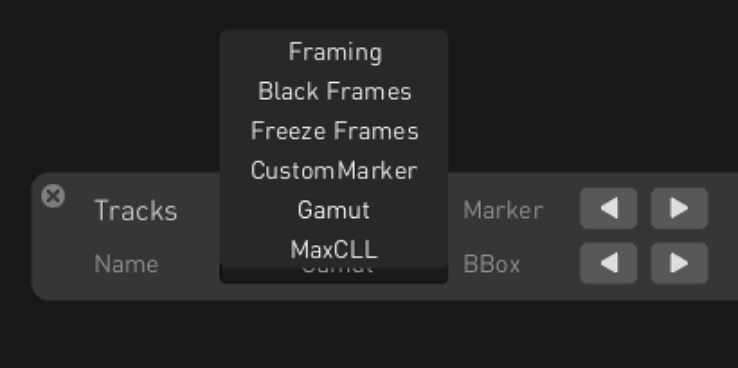
The new Marker Navigator window simplifies navigation across marker tracks in the timeline. Users can switch between tracks, browse markers and bounding boxes, and view timecodes. It includes status icons to accept or reject detections and a thumbnail panel for previewing issues. Sliders for minimum severity, brightness, and contrast allow fine-tuning of detection visibility, making QC review more efficient and precise.
Playhead Context Menu
A new playhead context menu gives quick access to timeline functions directly from the playhead indicator. Right-clicking the yellow line lets you copy the source or record timecode for pasting into external apps for reference or logging. You can also toggle loop modes, with options to loop either the entire timeline or just the current clip, enabling more flexible playback control.
Comprehensive Media Report
The Media Report PDF menu option provides an in-depth overview of the timeline’s content. The report includes basic metadata, a visual timeline overview, HDR analysis with Max FALL/CLL values and tolerance data, and dedicated QC summaries. It covers framing, audio errors, loudness, and other marker-based checks, offering a complete snapshot of media content and quality status.
HDR Brightness Guard Encoder
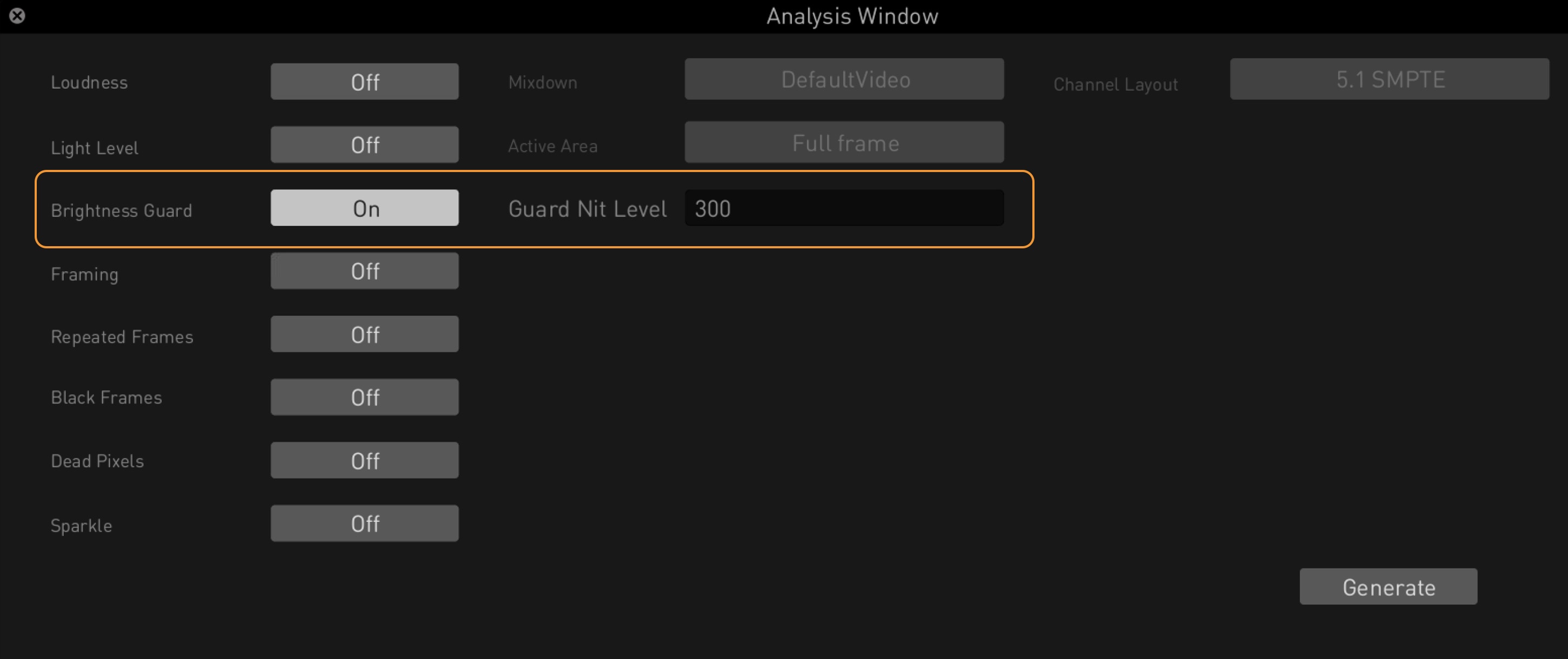
The Brightness Guard encoder, now available in the Analysis Window, helps detect overly bright regions in HDR masters. It flags solid pixel groups that exceed a user-defined brightness threshold, useful for identifying issues like bright titles that may violate HDR mastering standards. Users can customize sensitivity using the Guard Nit Level parameter, with a default setting of 300 nits.
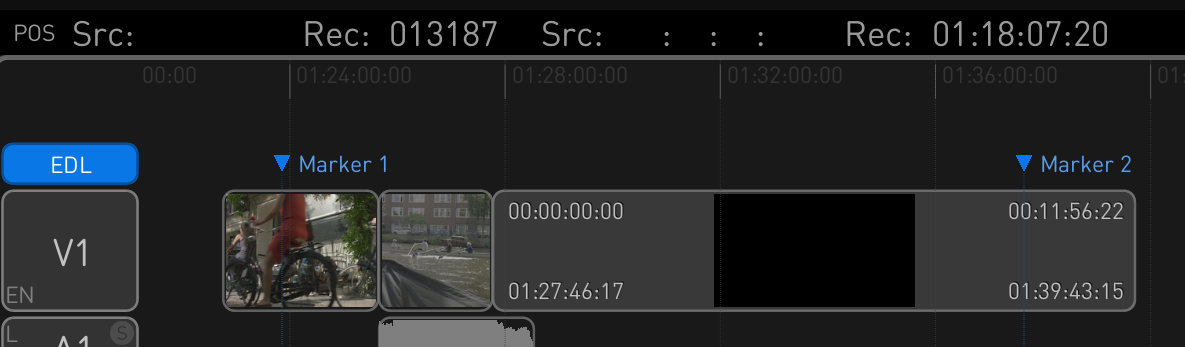
Marker Import/Export via EDL
The QC Player now supports importing and exporting marker tracks using the EDL format. Markers exported from DaVinci Resolve can be imported via a Timeline menu option, creating a new EDL track in the timeline. Conversely, any marker track in the QC Player can be exported as an EDL file, enabling smooth interoperability with other tools.
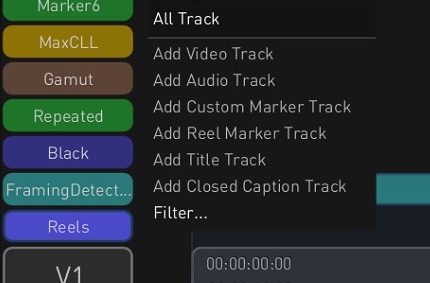
Marker Track Filtering
You can filter marker tracks directly from the timeline context menu. The filtering window lists all marker tracks, grouped as CF Auto QC (automatically generated) and External (manually imported). Users can toggle visibility for individual tracks or entire groups to focus on relevant markers. Quick action buttons let you show or hide all tracks or groups at once, streamlining timeline review and QC navigation.
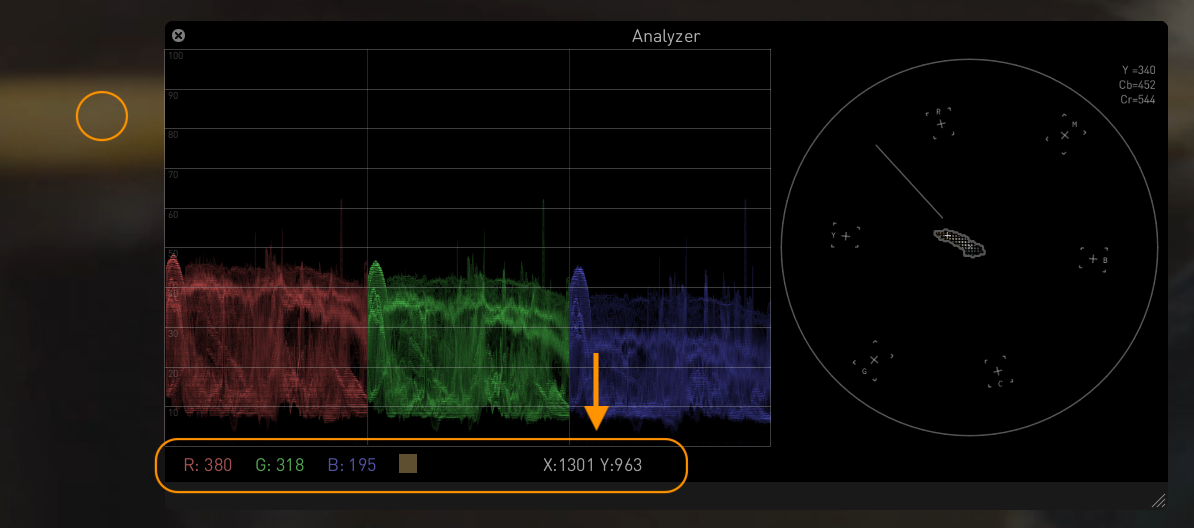
Pixel Picker with XY Coordinates
The Pixel Picker tool in the Analyzer now displays XY pixel coordinates along with RGB values, improving precision when inspecting specific pixels. When using Ctrl + click in the main viewer, the selected pixel’s X and Y coordinates appear in the bottom bar of the waveform graph, next to the RGB data. This enhancement makes detailed frame analysis more intuitive and accurate.
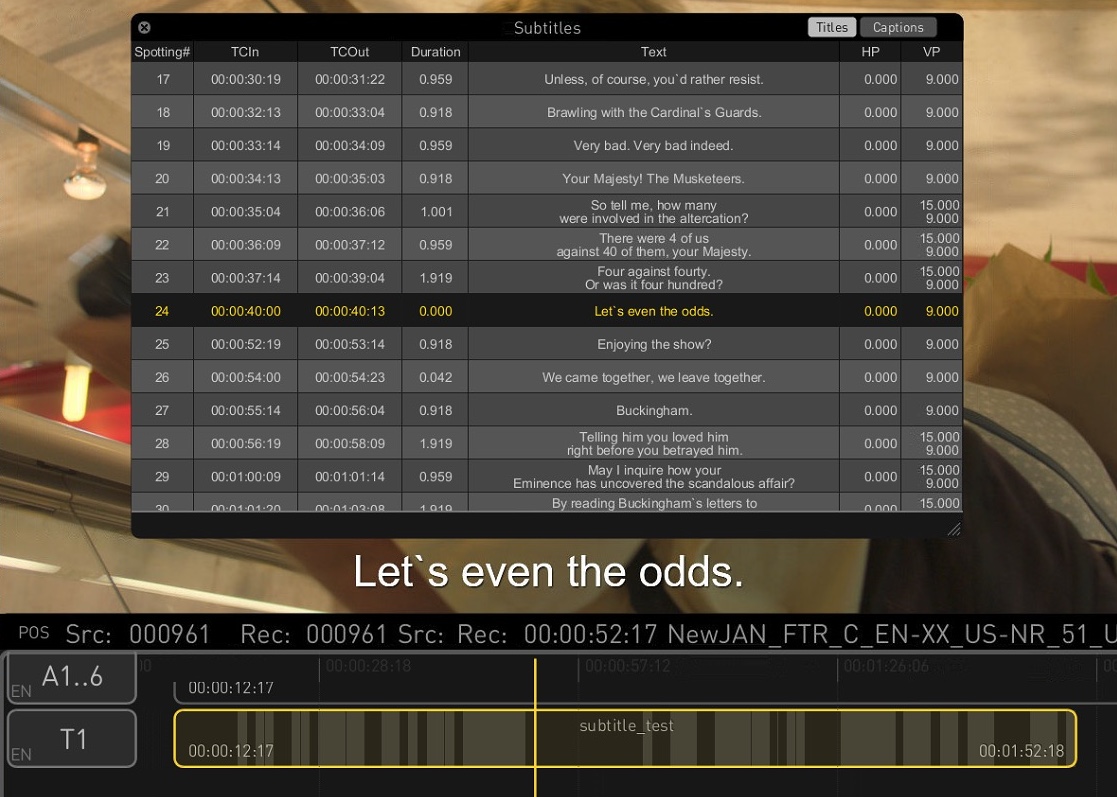
Subtitle Table Enhancements
Subtitle Table functionality has been improved for better interactivity and workflow efficiency. The table now auto-scrolls and highlights the relevant row during timeline navigation, including scrubbing or stepping through frames. A new Titles/Captions toggle lets users switch between subtitle and caption views. Clicking subtitle durations in the timeline also highlights the matching row. Additionally, in/out timecodes can now be edited directly by double-clicking the relevant fields.
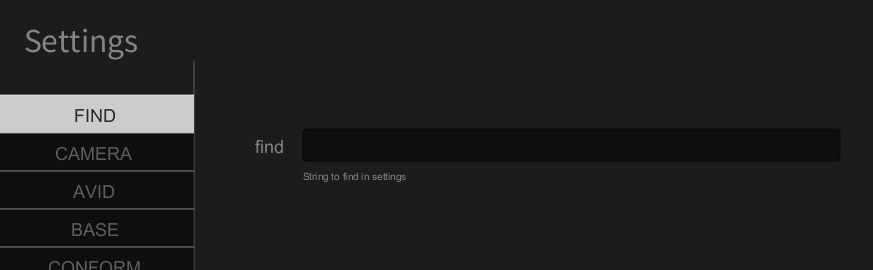
Search Function for Settings
The Settings Page now includes a search feature under the FIND tab, letting users quickly locate options by entering setting names or description keywords. This enhancement streamlines navigation across the growing list of configurable parameters within the various tabs of the Settings interface.
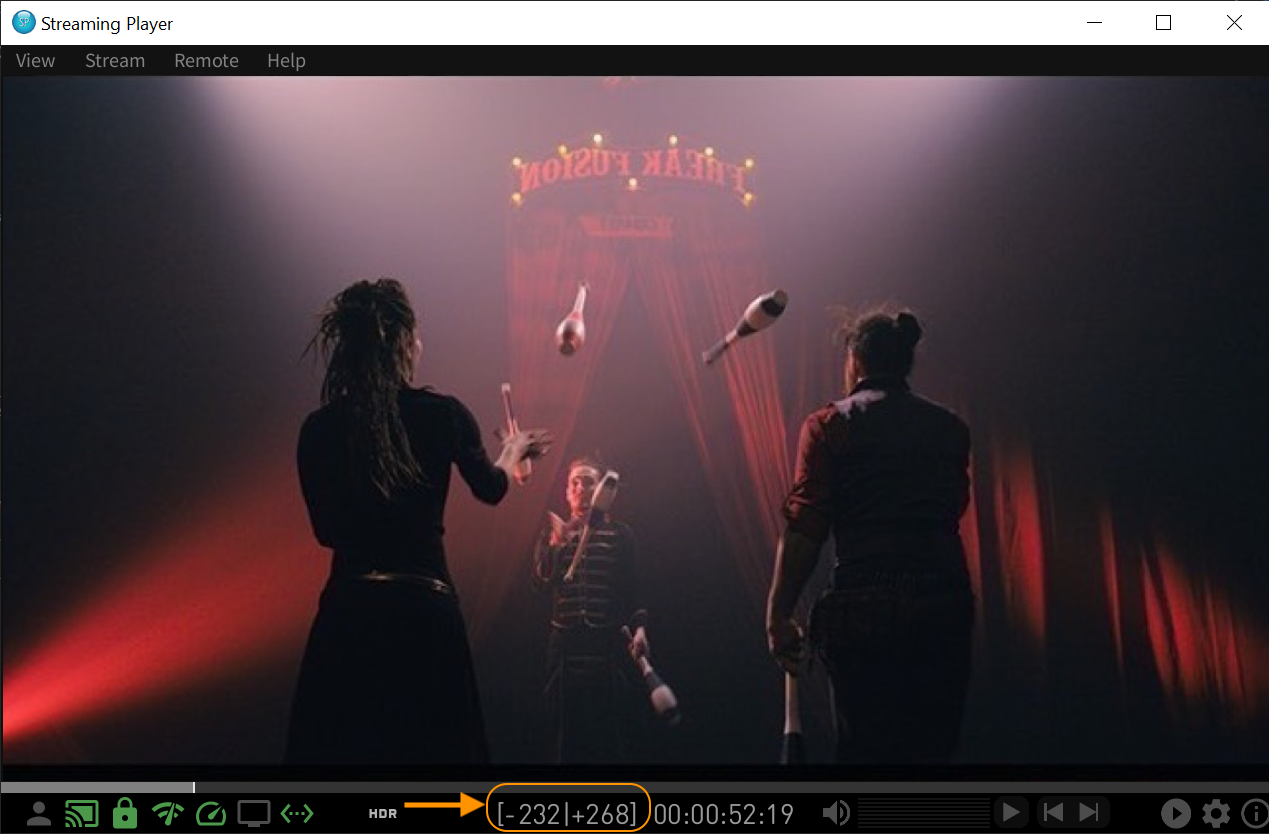
Zero Latency Streaming
Transkoder now supports real-time, zero-latency streaming via the Streaming Player using a new pre-caching feature that locally stores frames for smooth playback. This provides QC operators with an experience comparable to on-premises viewing. The cache size is adjustable via the Stream Cache Size setting in the Streaming Player’s Advanced Settings. Cached frame ranges are shown in the navigation bar, enabling instant backward and forward playback within the buffer.
Have any questions?
Contact Colorfront help center with Transkoder & On-Set Dailies user guides and tutorial videos.
Frequently Asked Question
What is QC Player used for?
QC Player is Colorfront's professional quality control application for reviewing and validating video content. It is designed for post-production facilities, distributors, and broadcasters who need accurate, real-time playback of high-resolution, HDR, and HDR content for compliance checking. QC Player supports professional SDI output, metadata inspection, and advanced QC analysis tools.
What formats does QC Player support?
QC Player supports a wide range of professional formats including DCP, IMF, MXF, ProRes, camera RAW formats, and HDR content. It shares format support with the broader Colorfront platform, including ARRI, Sony, RED, Canon, and Blackmagic camera formats, as well as DCP and IMF packages.
Does QC Player support Dolby Vision?
Yes. QC Player supports Dolby Vision playback and inspection, including viewing Dolby Vision metadata and validating HDR content for compliance. It uses the Colorfront Engine for accurate color rendering on HDR-capable monitors.
Does QC Player support HDR monitoring?
Yes. QC Player supports SDR and HDR monitoring including HDR10, Dolby Vision, and HLG. For accurate HDR QC, a professional HDR-capable monitor and a supported video output card (AJA KONA or Blackmagic DeckLink) are recommended.
What hardware does QC Player require?
QC Player runs on Windows and macOS. For accurate QC playback, a professional SDI output device such as an AJA KONA 5 or Blackmagic DeckLink 8K Pro is recommended. An HDR-capable reference monitor is also recommended for HDR content validation. NVIDIA GPU with minimum 8GB VRAM is required for GPU-accelerated playback.
Does QC Player support DCP and IMF validation?
Yes. QC Player includes DCP and IMF validation and QC tools, including package analysis, CPL inspection, and compliance reporting. It supports both OV and VF packages and includes checks aligned with major studio and distributor requirements.
Can QC Player integrate with remote streaming?
Yes. QC Player can stream directly within the software or can be integrated with the Colorfront Streaming Server and Streaming Player for remote QC workflows, allowing reviewers at remote locations to monitor content with reference-quality color accuracy.
Does QC Player support ACES?
Yes. QC Player uses the Colorfront Engine, which is ACES-compatible. It supports ACES color-managed playback and monitoring for productions using an ACES pipeline.
What platforms does QC Player run on?
QC Player runs on Windows and macOS, including Apple Silicon. As with other Colorfront products, the Windows platform offers the fullest feature set and highest performance for GPU-intensive QC workflows.
Can I get a trial license for QC Player?
Trial availability varies. Please contact your local Colorfront reseller or the Colorfront sales team to discuss evaluation options.