
Express Dailies
A streamlined dailies processing system for productions that need speed and simplicity without sacrificing image quality.
ExD handles camera original media from ingest through delivery — editorial formats, web review proxies, and VFX pulls — with a setup designed to get operators running quickly. Multi-GPU acceleration and optimized storage I/O keep up with the volume of a full production day without the complexity of a full-scale dailies pipeline.

Camera format support is comprehensive across all major manufacturers and recording formats. Production audio sync, metadata exchange, and LUT management are fully supported. Color processing is built around a template-based system — pre-configured setups that handle colorspace, look application, and burn-ins without requiring per-deliverable configuration from scratch. The right template, applied once, covers the day.
Full ACES workflow support and ASC FDL handling means looks and framing decisions translate correctly from set through to editorial and VFX, with automatic look application driven by clip metadata.
Key capabilities include:
- Multi-GPU accelerated camera original media processing
- Simultaneous editorial, proxy, and VFX pull output
- Template-based color processing and deliverable configuration
- Automatic look application driven by clip metadata
- Production audio sync
- Comprehensive dailies metadata exchange format support
- Full ACES workflow support
- ASC FDL framing management
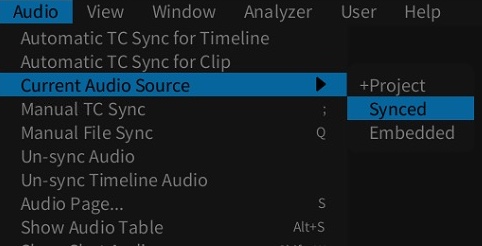
Switch Between Embedded and Synced Audio
On-Set Dailies now allows seamless switching between embedded and synced audio sources, improving playback and rendering flexibility. A new Current Audio Source option under the Audio menu lets users toggle between Synced and Embedded audio for the active Camroll or Labroll. The selection resets to the default Project setting upon exit, making it easy to manage audio without editing individual clips.
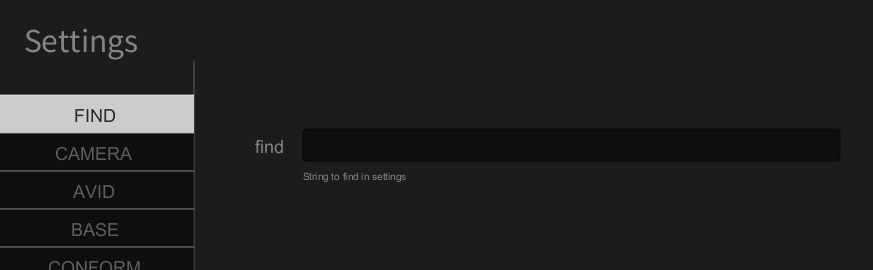
Search Function for Settings
The Settings Page now includes a search feature under the FIND tab, letting users quickly locate options by entering setting names or description keywords. This enhancement streamlines navigation across the growing list of configurable parameters within the various tabs of the Settings interface.
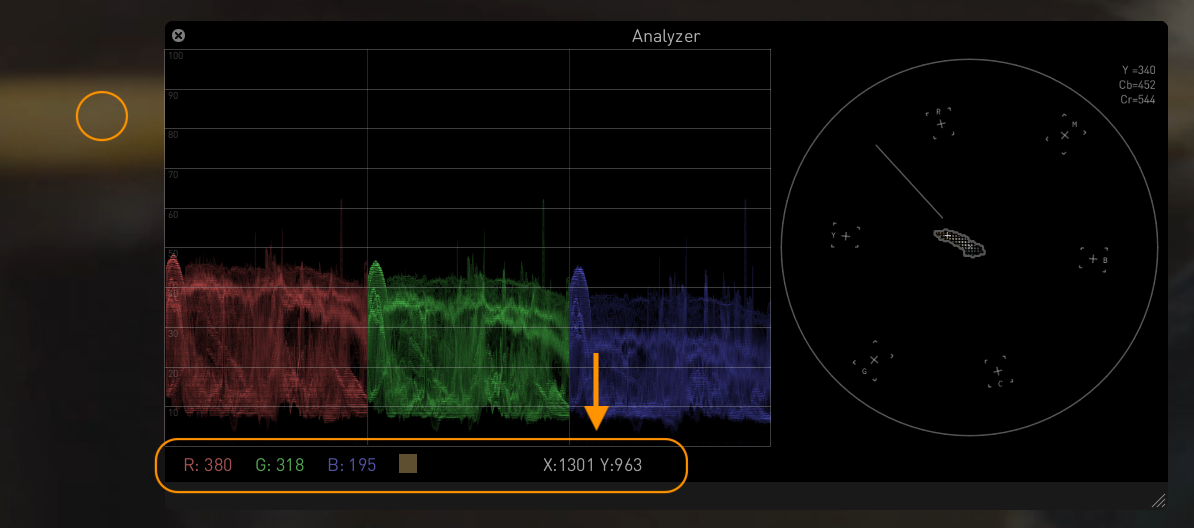
Pixel Picker with XY Coordinates
The Pixel Picker tool in the Analyzer now displays XY pixel coordinates along with RGB values, improving precision when inspecting specific pixels. When using Ctrl + click in the main viewer, the selected pixel’s X and Y coordinates appear in the bottom bar of the waveform graph, next to the RGB data. This enhancement makes detailed frame analysis more intuitive and accurate.
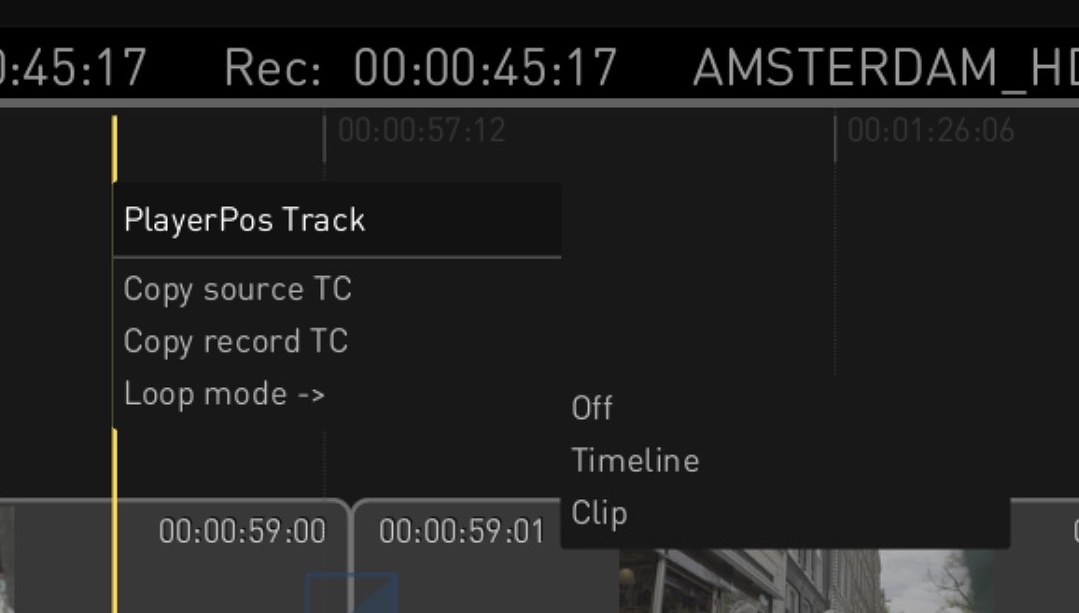
Menu Options for Timeline Loop Mode
A new Toggle Loop Mode option under the View menu allows users to switch playback loop modes — Disabled, Clip, and Timeline— directly from the menu. Previously only available via Shift+L, this function now offers a more flexible way to control timeline playback behavior. The same loop mode selection is also available via the new playhead context menu, providing quick access during timeline interaction.
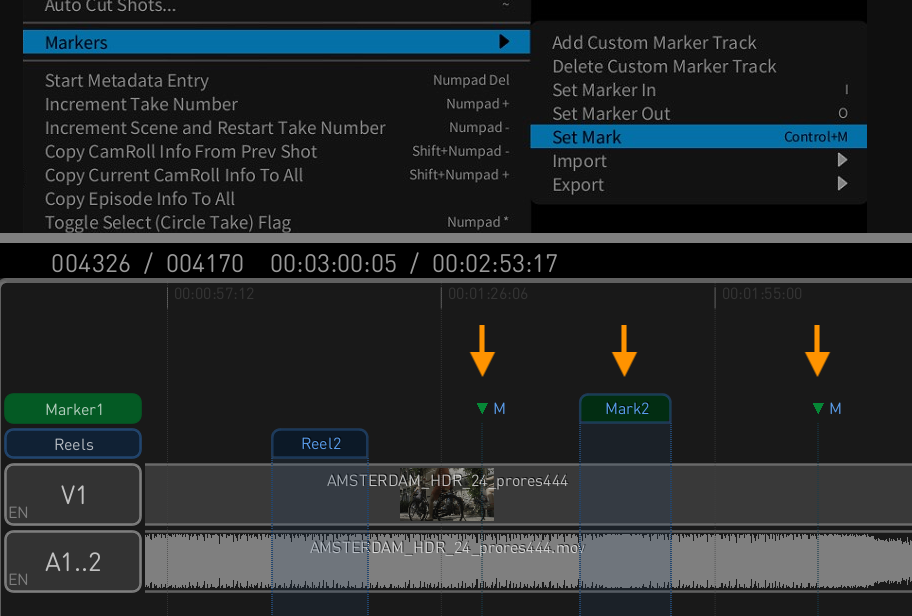
Custom Timeline Markers
A new Edit > Markers menu item introduces expanded support for creating and managing custom markers. Users can now add dedicated marker tracks, set in/out points for range markers, place position markers, and import or export marker files. Range markers span two frames, defined using I and O, while position markers are added at the playhead using the Set Mark menu option or the Ctrl+M shortcut.
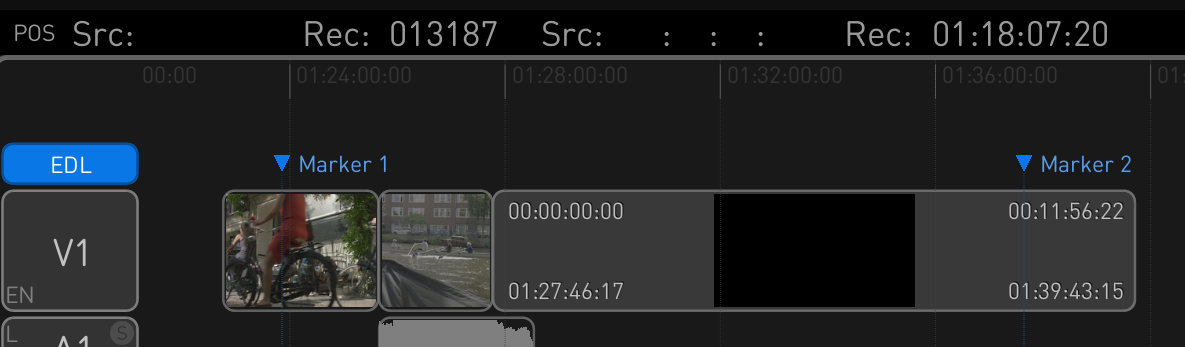
Marker Import/Export via EDL
The QC Player now supports importing and exporting marker tracks using the EDL format. Markers exported from DaVinci Resolve can be imported via a Timeline menu option, creating a new EDL track in the timeline. Conversely, any marker track in the QC Player can be exported as an EDL file, enabling smooth interoperability with other tools.
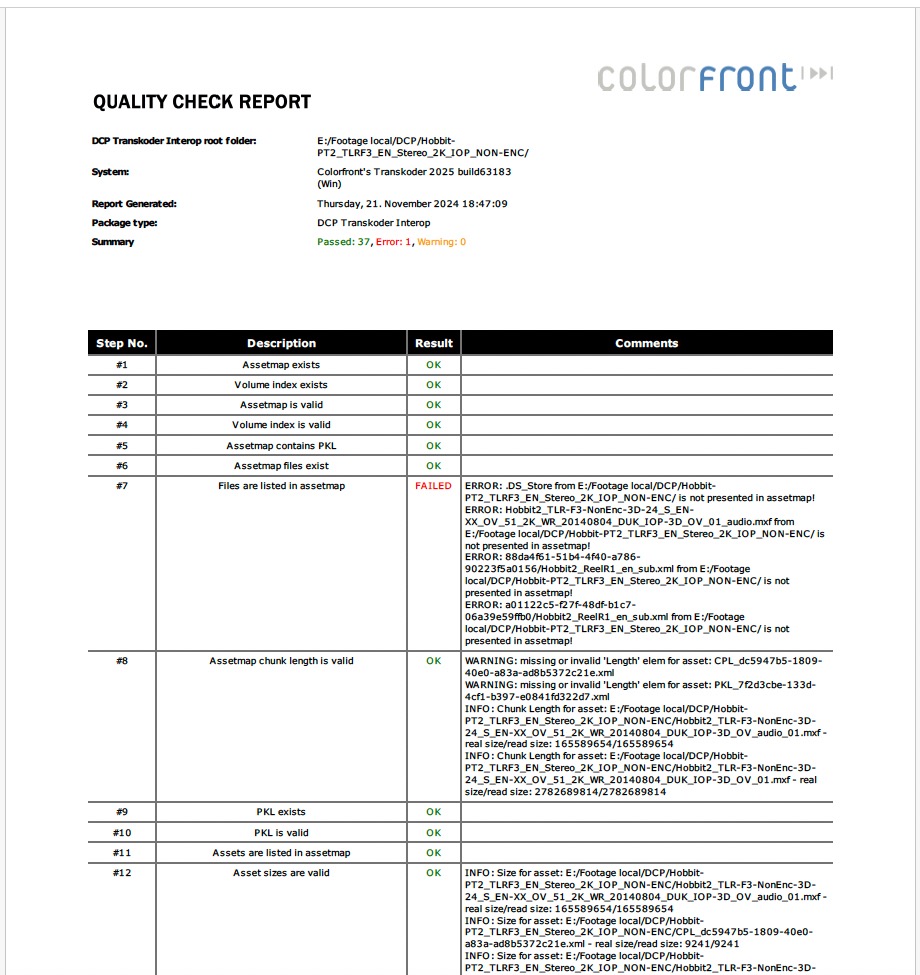
Comprehensive Media Report
The Media Report PDF menu option provides an in-depth overview of the timeline’s content. The report includes basic metadata, a visual timeline overview, HDR analysis with Max FALL/CLL values and tolerance data, and dedicated QC summaries. It covers framing, audio errors, loudness, and other marker-based checks, offering a complete snapshot of media content and quality status.
Have any questions?
Contact Colorfront help center with Transkoder & On-Set Dailies user guides and tutorial videos.
Frequently Asked Question
What is Express Dailies used for?
Express Dailies is Colorfront's facility-based dailies processing solution for film and television production. It is designed for high-throughput ingest, color management, and transcoding of camera originals into deliverable formats for editorial. Express Dailies is optimized for post-production facilities handling large volumes of dailies with consistent quality and speed.
What is the difference between Express Dailies and On-Set Dailies?
On-Set Dailies is a full-featured dailies platform designed for facilities that require complex color pipelines, multiple deliverables, and the deepest level of control over their dailies workflow. Express Dailies is designed for productions that need a faster, more streamlined interface for less complex color workflows and project outputs, making it well suited for near-set and simpler facility environments. Both are built on the same Colorfront Engine for color accuracy.
What camera formats does Express Dailies support?
Express Dailies supports a broad range of professional camera formats including ARRI, Sony, RED, Canon, Blackmagic, and Panasonic, as well as CinemaDNG and image sequences. It is built on the same underlying platform as Transkoder and OSD, ensuring consistent camera handling across Colorfront products.
Does Express Dailies support HDR?
Yes. Express Dailies supports HDR workflows including ACES and the Colorfront Engine. This ensures color-accurate monitoring and output for both SDR and HDR deliverables from the dailies stage.
Does Express Dailies support ACES?
Yes. Express Dailies uses the Colorfront Engine, which is compatible with ACES and supports multiple ACES versions and color spaces, including ACES 2065-1 and AP1. This allows for an ACES-based color-managed pipeline from dailies through to finishing.
Can Express Dailies integrate with remote streaming?
Yes. Express Dailies supports streaming directly through the software or integration with the Colorfront Streaming Server via SDI or NDI, enabling remote review of dailies by directors, cinematographers, and clients with reference-quality color.
What platforms does Express Dailies run on?
Express Dailies runs on Windows and macOS. Recommended hardware follows the same guidelines as other Colorfront products: Supermicro or HP workstations with NVIDIA GPUs for Windows, and Apple Silicon Macs for macOS.
Can I upgrade my Express Dailies license in the future?
Yes, license upgrades are available. For information on upgrade paths and any associated costs, please contact your Colorfront reseller or the Colorfront sales team directly.
What happens if my license dongle is lost or stolen?
Contact Colorfront support immediately. The team will advise on next steps and replacement options depending on your support agreement. Prompt reporting is recommended.
What are Colorfront's support hours?
Colorfront's support team is available Monday to Friday, 9am to 6pm Budapest time and 9am to 6pm Los Angeles time, providing coverage across European and US business hours. Support is available to customers with active support agreements and can be reached via the Colorfront support portal. The fastest way to get in touch with support is to send an email to support@colorfront.com and a team member will get back to you as quickly as possible.